Managing Your Shop & Creating Products
Create a Product
To create one from scratch.
- Go to Admin > Products
- Click Add Product
- Enter the Product Name
- Pick the appropriate Category on the right hand side. Make sure you check the "All Products" box for each product.
- Under the main dialog box is the Product Type panel. Here you define the product type (as outlined above) and whether it is a downloadable (digital), or virtual (service) product. Virtual products don’t require shipping – an order containing virtual products won’t calculate a shipping cost
Product data
Next is the Product Data tab set. This is where the majority of the product data is input. Product data is added from this panel:
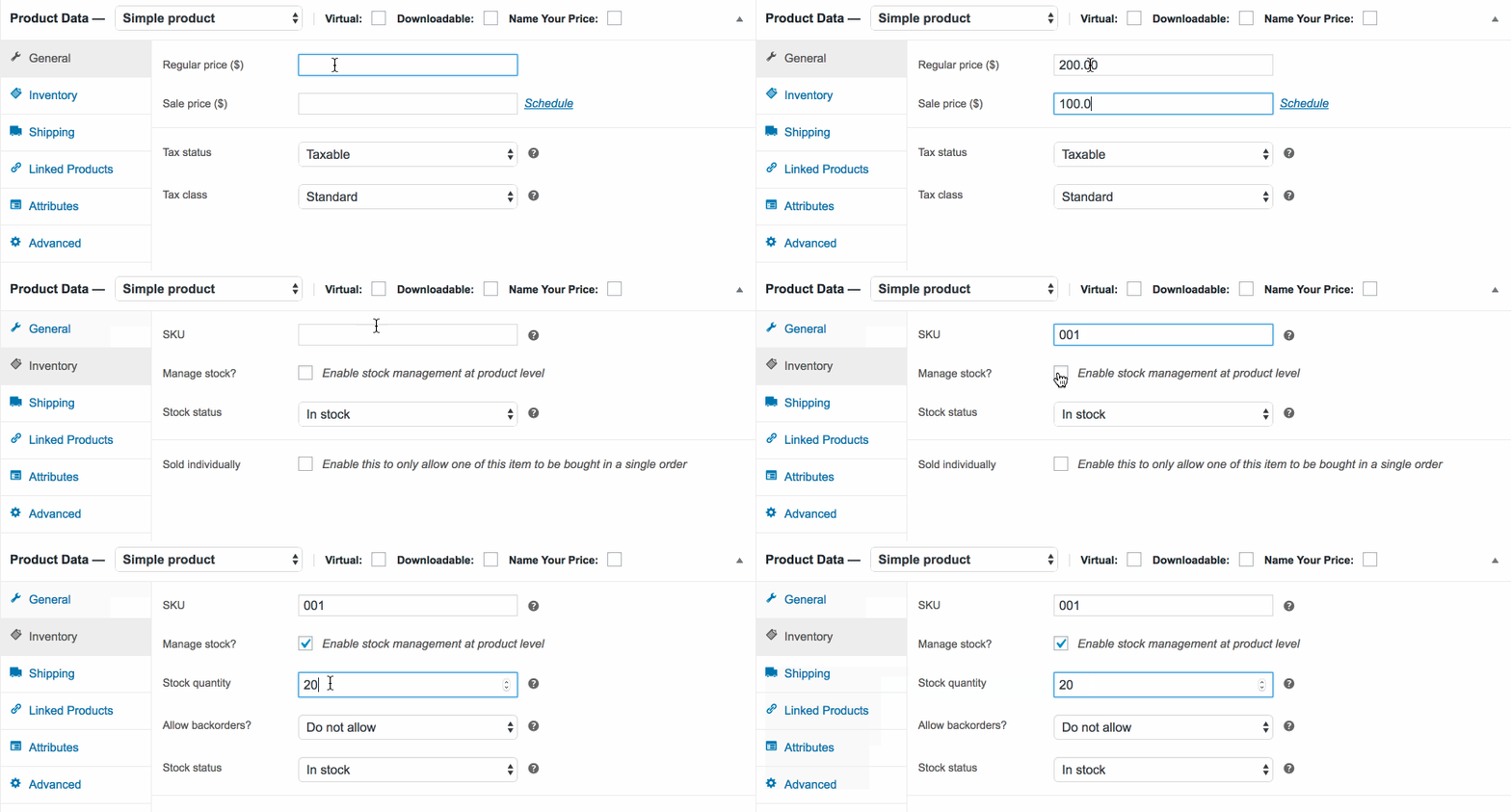
General tab
- SKU: Stock Keep Unit used to track products. Must be unique and not clas with product ID's
- Regular Price: The item’s main price
- Sale Price: The item's sale price
- Tax Status: The item's tax status.
- Tax Class: The item's tax class. Set up tax classes in WooCommerce > Settings > Tax
Inventory tab
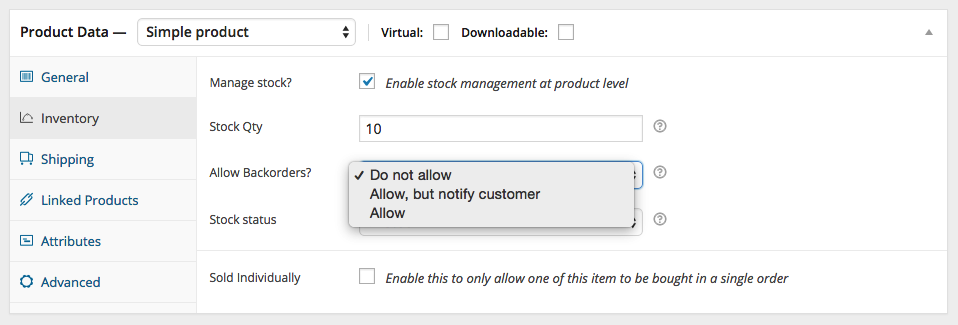
The inventory tab allows you to manage stock for the product individually and define whether to allow back orders. If stock management is disabled from the settings page, only the Stock Status option will be visible. Checking the Sold Individually box limits the product to 1 per order.
Shipping tab
- Weight: Weight of the item when being shipped
- Dimensions: Length, width, and height of the item when being shipped
- Shipping Class: Shipping classes are used by certain shipping methods to group similar products
Attributes tab
On the attributes tab you can assign attributes to a product. You will see a select box containing any global attribute sets you may have created (eg. size). Once you have selected an attribute, click Add and you will be able to apply the terms attached to that attribute (eg. small, medium, or large) to the product.
You can choose to hide the attribute on the frontend by simply leaving the Visible checkbox unticked. Custom attributes can be applied by choosing Custom Product Attributes from the select box.
Advanced tab
- Purchase Note: Enter an optional note to send the customer after purchase.
- Menu Order: Custom ordering position for this item.
- Enable Reviews: Enable/Disable customers reviews for this item
Create a Variable Product
Variable products are arguably the most complex of product types. They let you define different variations of a product such as size, colour, add-ons, and more. Each variation can have it's own SKU, price, and stock level.
Here's more on variable products: https://docs.woothemes.com/document/variable-product/
Create a Gift Card
Gift Cards allow for someone to purchase a prepaid voucher to be used within your online or physical stores. There are two types of Gift Cards; a Physical Gift Card and Digital Gift Card. Here's how you make one:
- Go to Admin > Products
- Click Add Product
- Enter the Product Name
- Select the 'Gift Card' option within the Product Data tab
- Set the voucher price or select the 'Name Your Price' option if the price is user-defined
- Set an expiry date for the voucher and an image to display in the auto-email
For Digital Gift Cards, a unique voucher code is generated once they checkout. This voucher is emailed directly to the user and is found within Admin > Marketing > Gift Cards. Once the Gift Card has been used, it will be marked as Redeemed and is no longer valid.
For Physical Gift Cards, the voucher will need to be set up manually within Admin > Marketing > Coupons. If the voucher is redeemed online, it will no longer be valid.
If either a Physical or Digital Gift Card is used in store, the store manager will manually need to remove it from the site.