Shop Orders
Viewing Orders
View all shop orders at WooCommerce > Orders
Orders are created when a customer completes the checkout process, and they are visible by Admin and Shop Manager users only. EEach order row displays useful details, such as a unique order ID, customer address, email, telephone number, and the order status.
Order Status
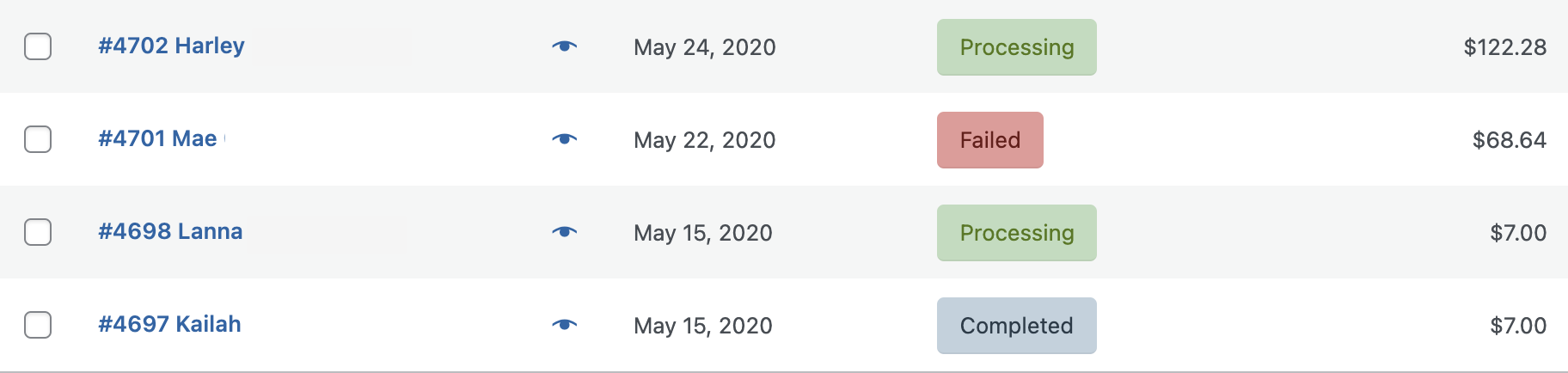
An order also has a Status. Order statuses let you know how far along the order is, starting with Pending and ending with Complete. The following order statuses are used:
- Pending Payment: Order received but is unpaid
- Failed: Payment failed or was declined. This status may not show until verified by payment gateway
- Processing: Payment received and stock has been reduced but order is waiting to be fulfilled.
- Completed: Order fulfilled and complete and requires no further action
- On-Hold: Stock has been reduced but payment needs to be approved
- Cancelled: Cancelled either by admin or customer and requries no further action
- Refunded: Refunded by an admin and requires no further action
Order/Customer Notes
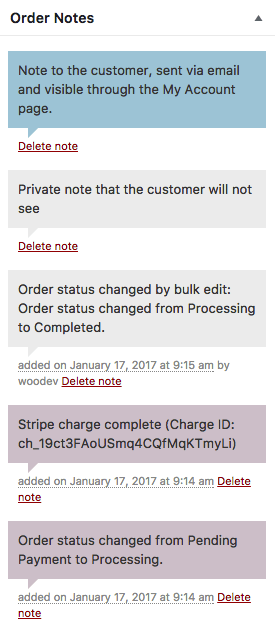
The Order Notes panel displays notes attached to the order and can be used for storing event details, such as payment results or reducing stock levels, or adding notes to the order for customers to view. Some payment gateways also add notes for debugging.
Notes can be a powerful tool for communicating with customers. Need to add a tracking number for shipping? Is stock delayed? Add a customer note and they are automatically notified.
Manual Refunds
Refunding manually allows you to utilize any WooCommerce payment gateway, regardless of automatic refund support. This will not automatically send the refund to your payment gateway, but allow you to mark the order as refunded on the order. Refunds extend to products, taxes, and shipping fees and must be processed directly with your Payment Gateway.
To manually refund an order:
- Go to WooCommerce > Orders
- Select the order you wish to refund.
- Select the Refund button.
- Enter amount to refund.
- Add refund notes.
- Click Refund Manually
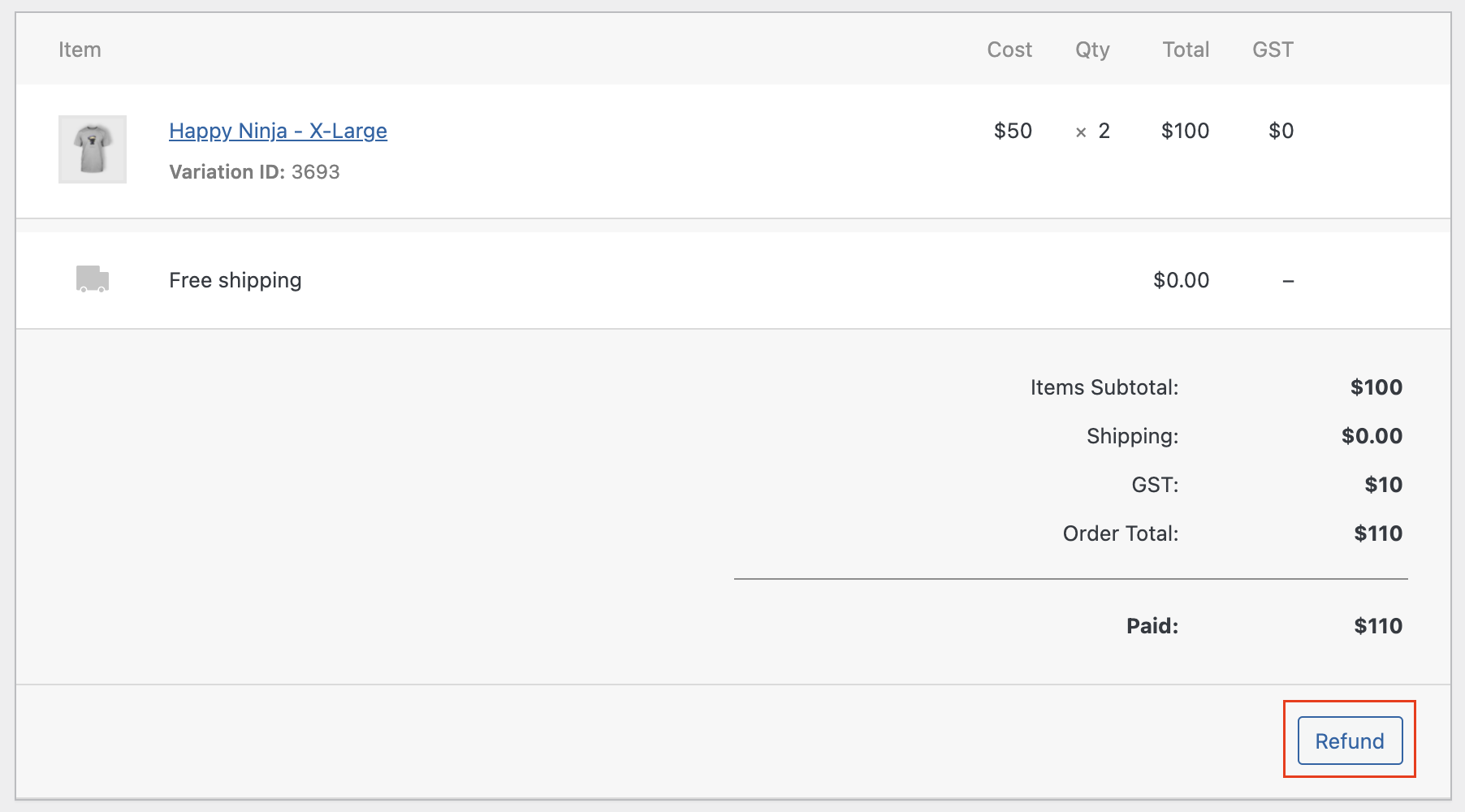
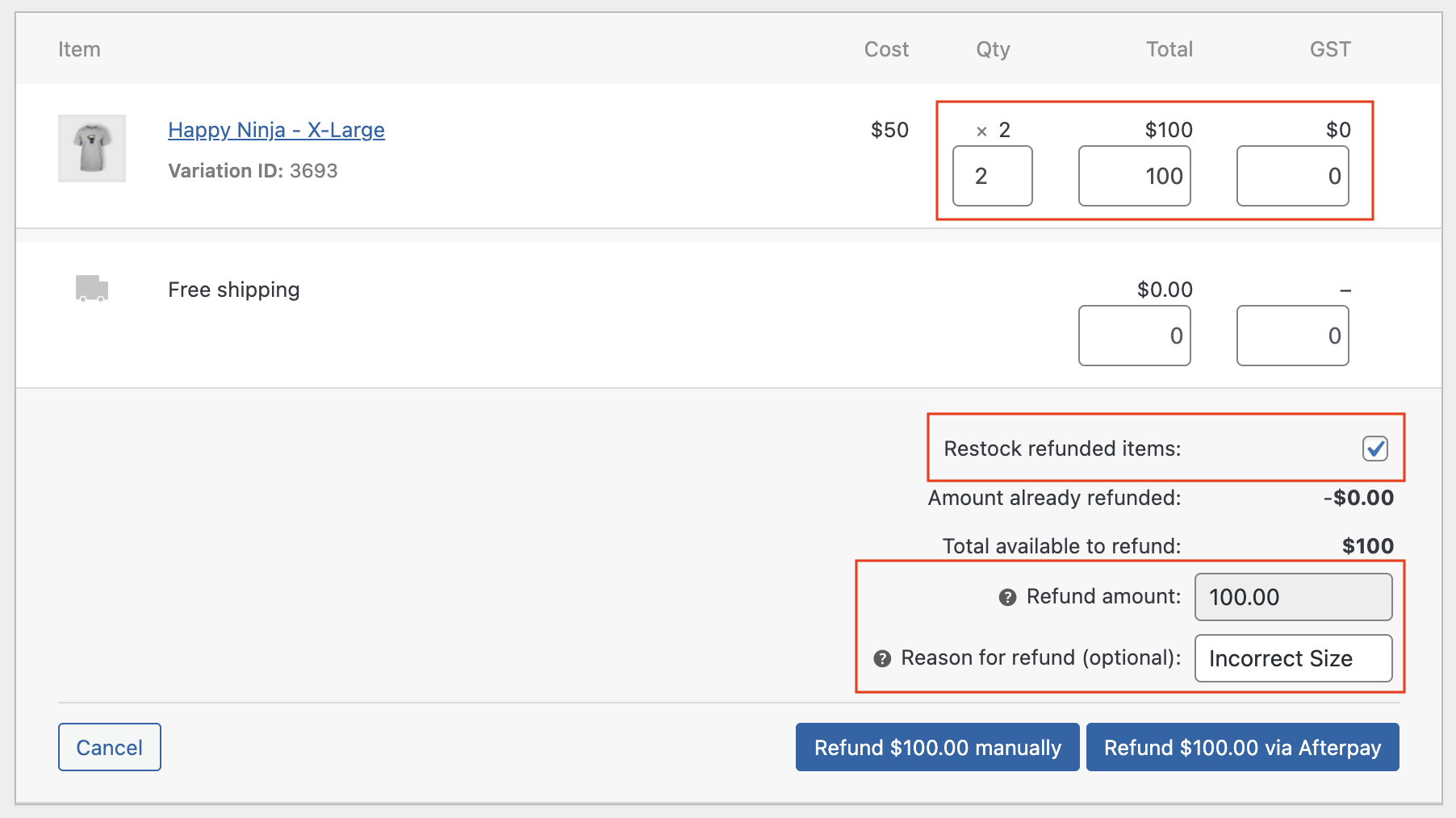
The items selected for the refund will be noted as refunded. You will need to manually change the Order Status accordingly if you wish to see the order status changed to Refunded.
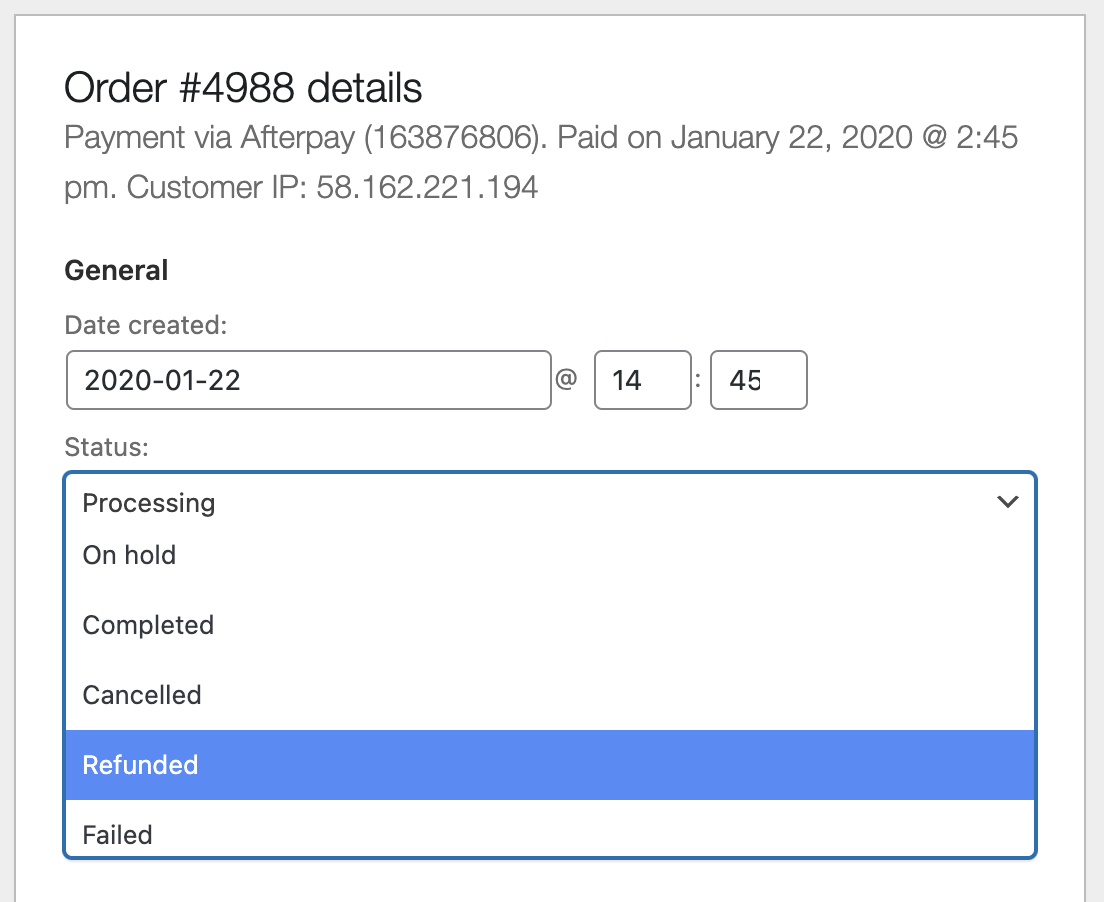
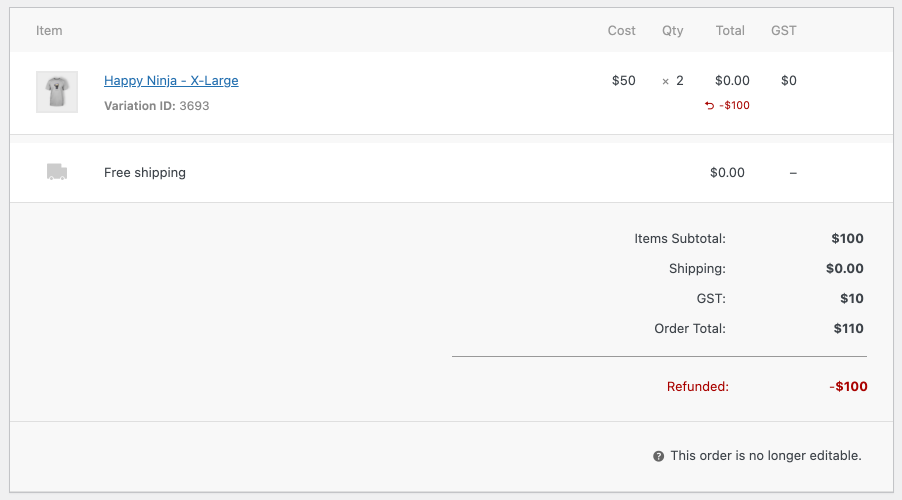
Once the refund has been applied to the order it will look like this: